7 Free Blur Midjourney AI images
Explore our extensive collection of AI-generated 'blur' images, featuring over 7 free, high-resolution downloads. This page offers a diverse range of image types, including stock photos, 3D objects, vectors, and illustrations. Each image can be easily customized using our 'open in editor' feature, allowing users to tweak the prompt for a more tailored result.
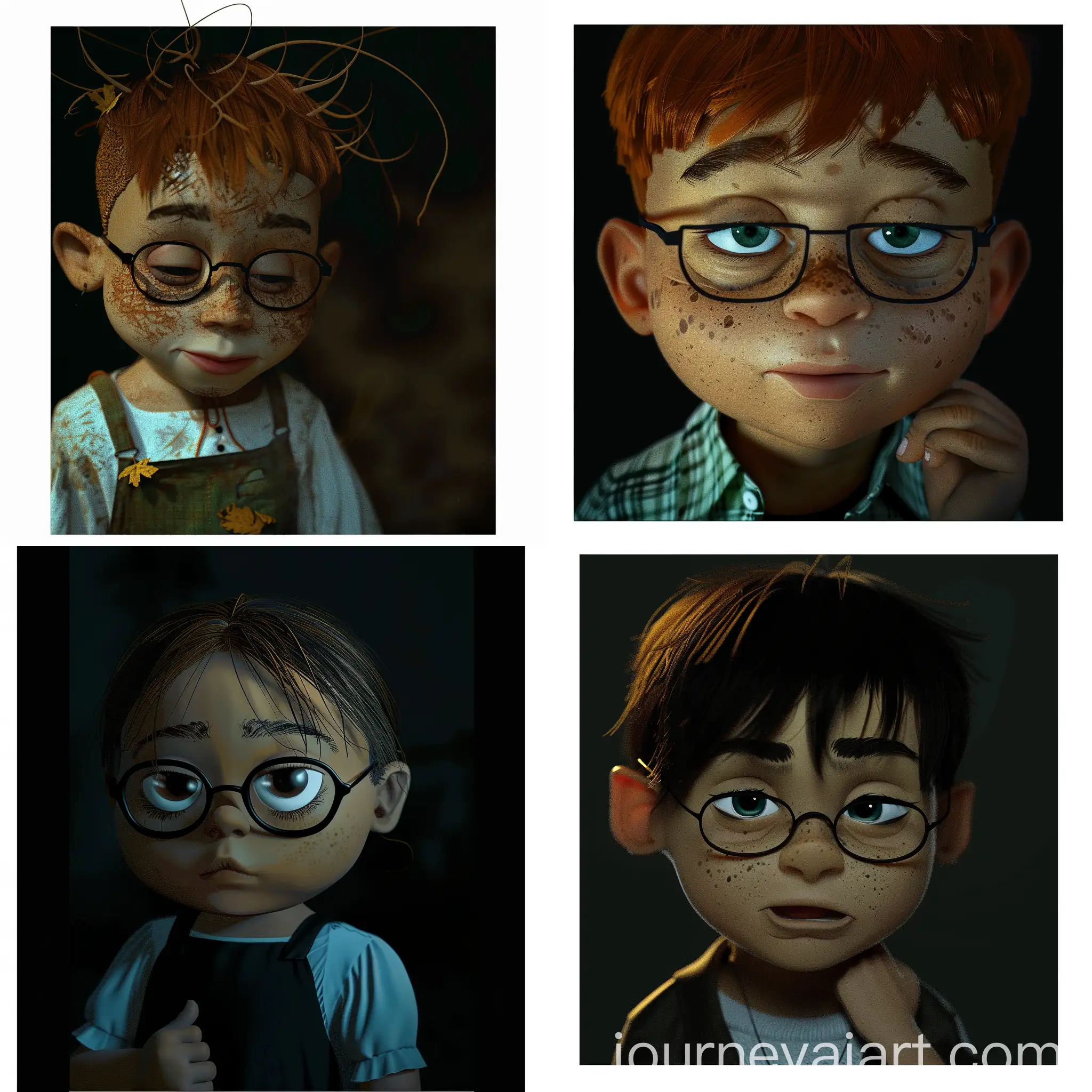
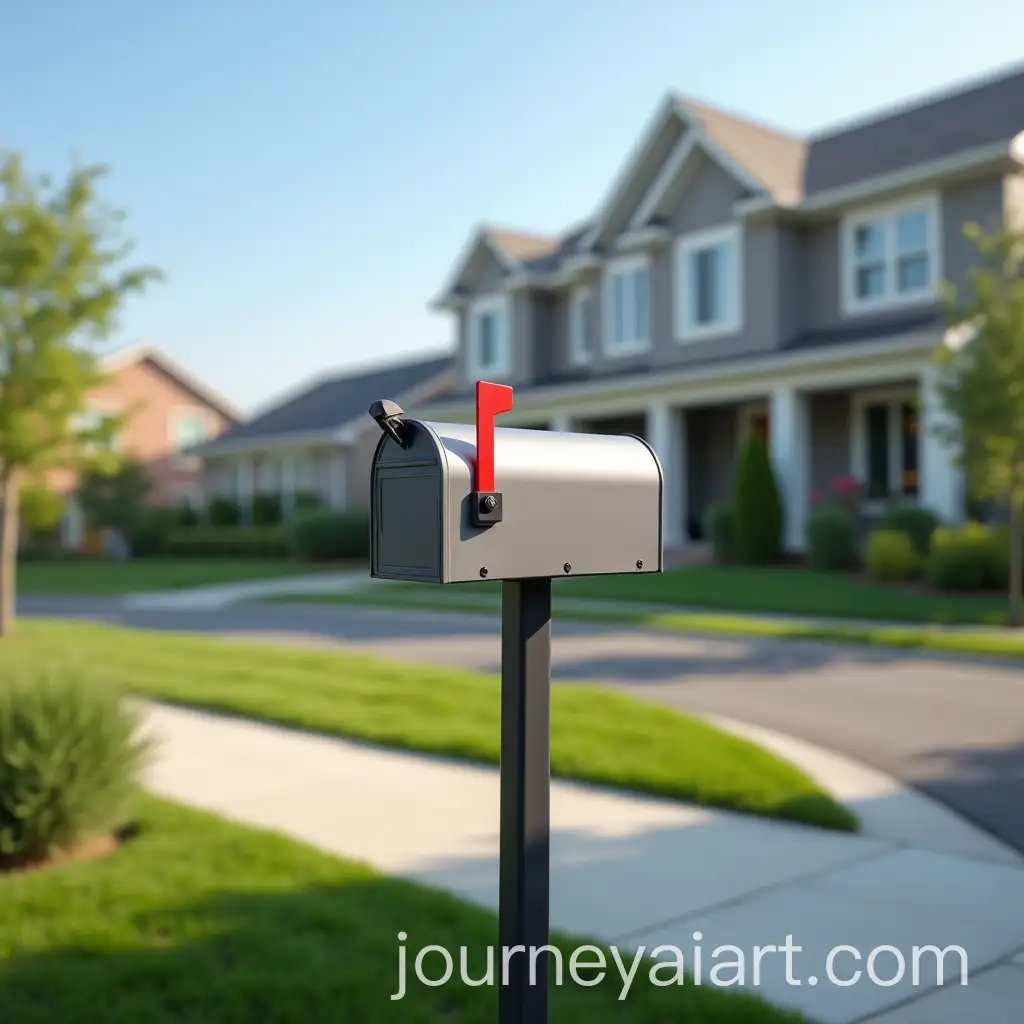
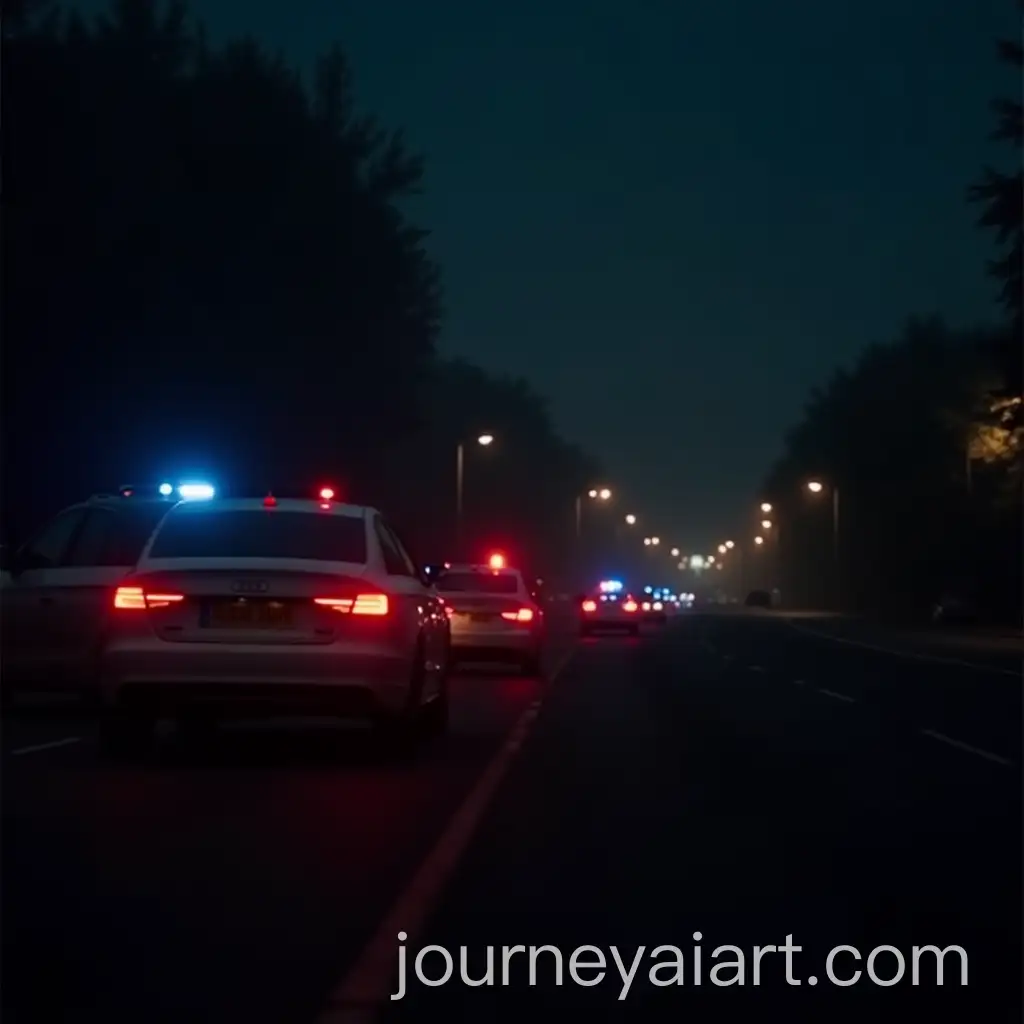
The term 'blur' in AI-generated images refers to the intentional softening of image details to create a smooth, hazy effect. It is often used to evoke emotions, add depth, or emphasize certain areas of a composition by drawing attention away from overly sharp details. In digital art and photography, blur can serve various purposes, from adding motion to creating surreal or abstract visuals. AI tools can generate these effects with precision, offering users unique ways to experiment with blur for artistic or practical use.
Understanding the Concept of Blur in AI-Generated Imagery
Blur effects are widely used across digital platforms, particularly in design, photography, and advertising. They can help create focus by contrasting sharp and soft elements or add a dreamlike quality to an image. In web design, blur is often used for backgrounds, giving prominence to foreground elements like text or logos. In photography, blur can enhance motion or depth, making subjects stand out. With AI-generated images, the versatility of blur allows designers and creators to quickly adapt and refine their work for various media.
Applications of Blur in Modern Digital Art and Design
There are several distinct styles of blur, each with its unique applications. Gaussian blur is a popular method that smooths an image evenly across all directions, resulting in a soft, natural haze. Motion blur mimics the effect of a moving object, adding dynamic energy to still images. Radial blur emphasizes a central point by creating streaks that radiate outward, often used to simulate motion or speed. With AI, these effects can be applied with precision, allowing users to adjust the intensity and focus of the blur for creative results.
Styles of Blur: From Gaussian to Motion and Beyond
AI platforms make it simple to create custom blur effects. Begin by selecting an image and adjusting the blur settings, such as type and intensity. For a soft, dreamy look, apply a Gaussian blur; for a dynamic, fast-moving scene, try motion blur. Many platforms, like ours, offer the option to 'open in editor,' allowing users to tweak the image prompt and generate new versions with varying degrees of blur. This flexibility enables users to experiment with different styles and effects until the perfect result is achieved.
Creating AI-Generated Blur Effects: A Step-by-Step Guide